> For the complete documentation index, see [llms.txt](https://support.emarketeer.com/llms.txt). Markdown versions of documentation pages are available by appending `.md` to page URLs; this page is available as [Markdown](https://support.emarketeer.com/docs/docs_se/integrationer/superoffice/superoffice-journey-steps/so-create-sale.md).
# Skapa försäljning
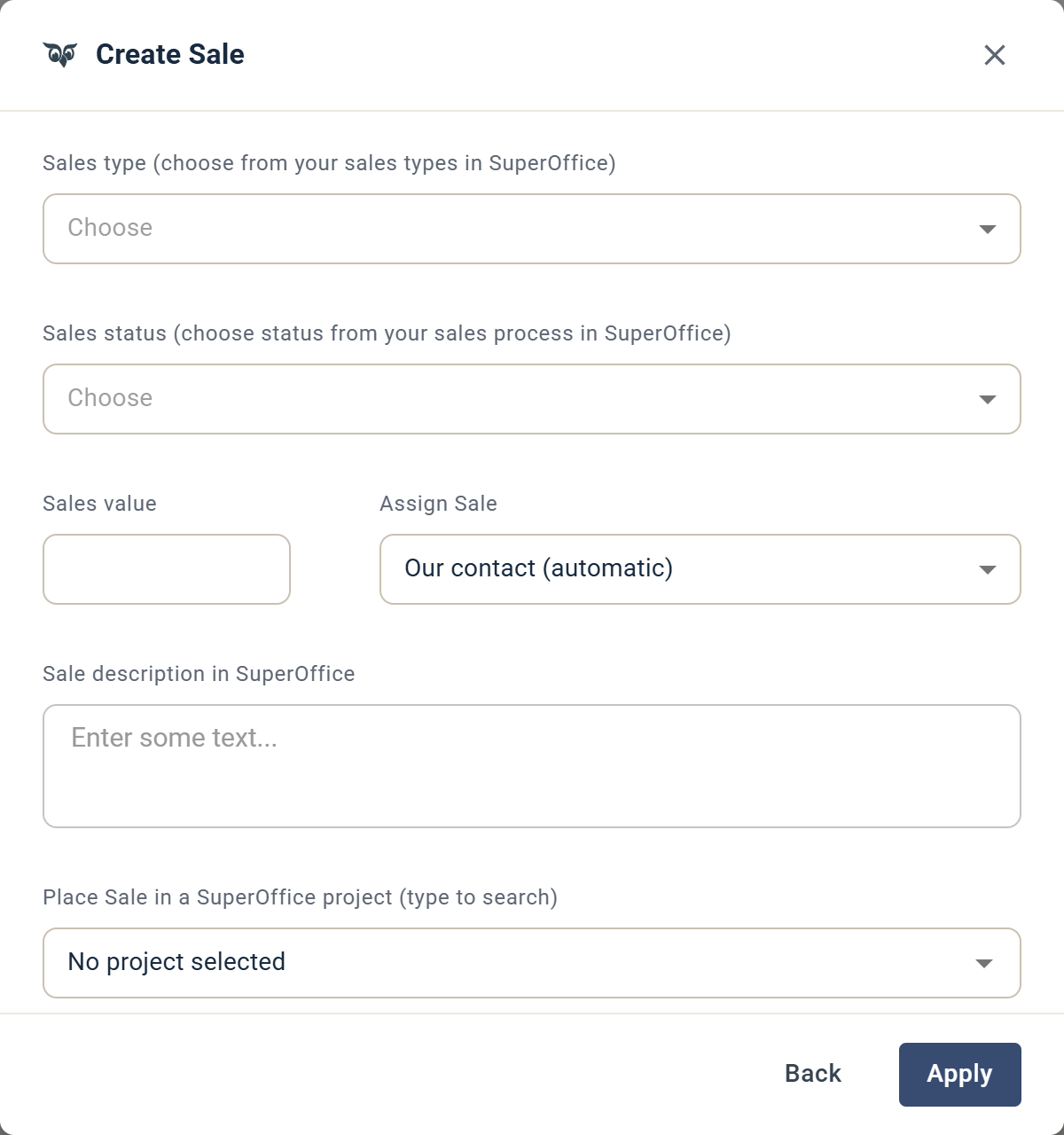
Journey-steg som skapar en Sale på den matchande kontakten i SuperOffice.
## Inställningar
**Sales type:** Anger försäljningstypen. Välj bland de tillgängliga försäljningstyperna i ditt anslutna SuperOffice-konto.
**Sales status:** Anger försäljningens aktuella status i säljcykeln. Välj bland de tillgängliga statusarna i ditt anslutna SuperOffice-konto.
**Sales value:** Anger ett uppskattat värde för försäljningen. Den tilldelade SuperOffice-användaren kan uppdatera detta senare.
**Assign Sale:** Tilldela försäljningen till en specifik SuperOffice-användare, eller använd det dynamiska alternativet **Our contact**. Our contact är den användare som är tilldelad kontaktens företag under fältet Our contact på SuperOffice-företagskortet.
**Sale description in SuperOffice:** En beskrivning för försäljningen. Skriv @ för att infoga personaliserade kopplingsfält. Beskrivningen visas även i kolumnen **Text** på fliken Försäljning för kontakter och företag i SuperOffice.
**Place Sale in a SuperOffice project:** Tilldela ett projekt för att lägga till både försäljningen och kontakten i ett SuperOffice-projekt.
---
# Agent Instructions
This documentation is published with GitBook. GitBook is the documentation platform designed so that both humans and AI agents can read, navigate, and reason over technical content effectively. Learn more at gitbook.com.
## Querying This Documentation
If you need additional information that is not directly available in this page, you can query the documentation by asking a question.
Perform an HTTP GET request on the following URL with the `ask` and `goal` query parameters:
```
GET https://support.emarketeer.com/docs/docs_se/integrationer/superoffice/superoffice-journey-steps/so-create-sale.md?ask=&goal=
```
`ask` is the immediate question: it should be specific, self-contained, and written in natural language.
`goal` is what the user is ultimately trying to achieve, the reason they need the answer. Sharing it helps GitBook give you a better, more relevant answer. A goal is most helpful when it describes the outcome the user wants rather than restating the question. For example, with `ask=how do I create an API token`, a goal like `automate deployments from our CI pipeline` lets GitBook tailor the answer to that use case.
The response will contain a direct answer to the question and relevant excerpts and sources from the documentation.
Use this mechanism when the answer is not explicitly present in the current page, you need clarification or additional context, or you want to retrieve related documentation sections.