> For the complete documentation index, see [llms.txt](https://support.emarketeer.com/llms.txt). Markdown versions of documentation pages are available by appending `.md` to page URLs; this page is available as [Markdown](https://support.emarketeer.com/docs/docs_se/integrationer/superoffice/superoffice-signals.md).
# SuperOffice Signals
SuperOffice kan skicka vissa händelser till eMarketeer som Signals, så att du kan lyssna efter dessa händelser och agera på dem i eMarketeer.
Alla Signals som skickas till eMarketeer kan användas för att:
* Hitta kontakter i ett kontaktfilter, inklusive filtrering på specifika värden i signalen
* Trigga Journeys när signalen kommer in
* Generera leads på Lead Board
* Sätta Lead Score för signalen
## Prenumerera på SuperOffice-händelser
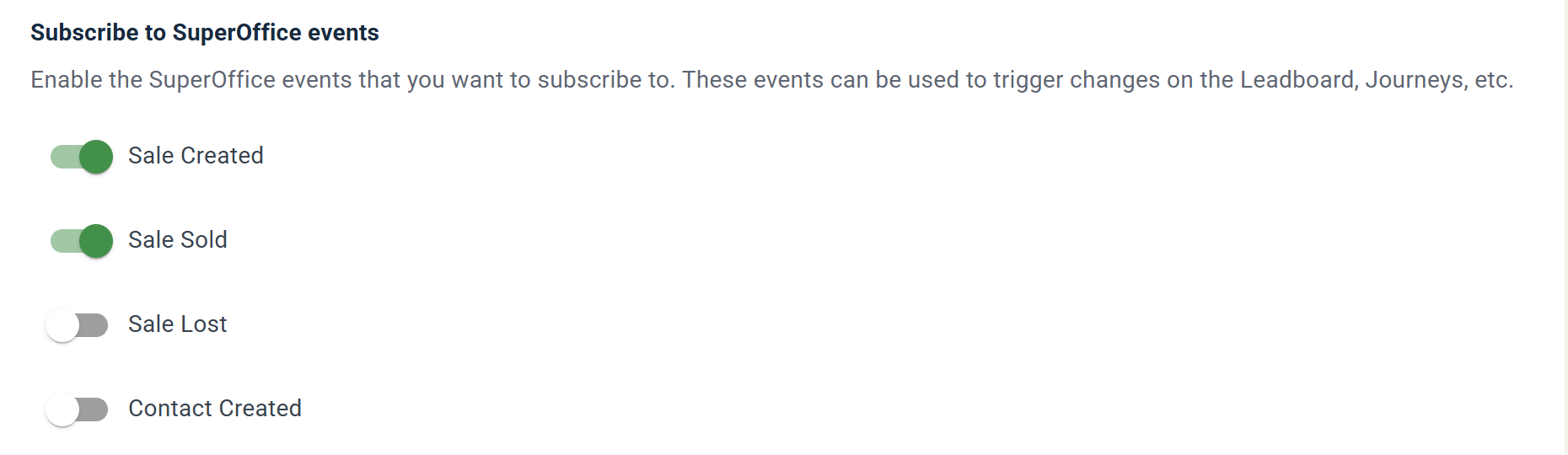
För att prenumerera på SuperOffice-händelser klickar du på kugghjulsikonen uppe till höger, väljer **Account Settings**, öppnar **Integrations** och klickar på **Manage** på kortet SuperOffice CRM. På SuperOffice-inställningssidan finns de händelser du kan prenumerera på under **Subscribe to SuperOffice events**.
Slå på reglagen för de händelser du vill att SuperOffice ska skicka till eMarketeer.
Om kontaktens e-postadress i en mottagen händelse inte finns i eMarketeer skapas kontakten.
## Sale Sold
Den här händelsen skickas till eMarketeer när en försäljning stängs som "Sold" i SuperOffice. Data som skickas till eMarketeer är:
* E-postadress (för den relaterade kontakten i försäljningen)
* Sale ID
* Sale name
* Sale Type
* Sale value
Exempel på användningsfall:
* Flytta en lead på Lead Board till "Won" när en försäljning stängs i SuperOffice
* Skicka ett tack-mejl till en ny kund
* Sätt kontaktens status till kund
## Sale Lost
Den här händelsen skickas till eMarketeer när en försäljning stängs som "Lost" i SuperOffice. Data som skickas till eMarketeer är:
* E-postadress (för den relaterade kontakten i försäljningen)
* Sale ID
* Sale name
* Sale Type
* Sale value
Exempel på användningsfall:
* Flytta leaden till "Lost" på Lead Board
* Tagga kontakten som en förlorad försäljning för framtida win-back-kampanjer
## Sale Created
Den här händelsen skickas till eMarketeer när en försäljning skapas i SuperOffice. Data som skickas till eMarketeer är:
* E-postadress (för den relaterade kontakten i försäljningen)
* Sale ID
* Sale name
* Sale Type
* Sale value
Exempel på användningsfall:
* Starta en nurturing-Journey för en nyligen skapad försäljning
## Contact Created
Den här händelsen skickas till eMarketeer när en kontakt skapas i SuperOffice. Data som skickas till eMarketeer är:
* E-postadress (för den skapade kontakten)
* Signal ID (`New Contact Created`)
Exempel på användningsfall:
* Skicka ett meddelande om dataskydd till nya kontakter
---
# Agent Instructions
This documentation is published with GitBook. GitBook is the documentation platform designed so that both humans and AI agents can read, navigate, and reason over technical content effectively. Learn more at gitbook.com.
## Querying This Documentation
If you need additional information that is not directly available in this page, you can query the documentation by asking a question.
Perform an HTTP GET request on the following URL with the `ask` and `goal` query parameters:
```
GET https://support.emarketeer.com/docs/docs_se/integrationer/superoffice/superoffice-signals.md?ask=&goal=
```
`ask` is the immediate question: it should be specific, self-contained, and written in natural language.
`goal` is what the user is ultimately trying to achieve, the reason they need the answer. Sharing it helps GitBook give you a better, more relevant answer. A goal is most helpful when it describes the outcome the user wants rather than restating the question. For example, with `ask=how do I create an API token`, a goal like `automate deployments from our CI pipeline` lets GitBook tailor the answer to that use case.
The response will contain a direct answer to the question and relevant excerpts and sources from the documentation.
Use this mechanism when the answer is not explicitly present in the current page, you need clarification or additional context, or you want to retrieve related documentation sections.