> For the complete documentation index, see [llms.txt](https://support.emarketeer.com/llms.txt). Markdown versions of documentation pages are available by appending `.md` to page URLs; this page is available as [Markdown](https://support.emarketeer.com/getting-started/account-setup/authorize-email-domain.md).

# Add Email domain

Step-by-step instructions for adding an email domain to your eMarketeer account.

{% hint style="info" %}
An authorized email domain is required to send emails from eMarketeer. Without one, outgoing email is not available on your account.
{% endhint %}

This guide walks you through authenticating your domain so you can send email from your own address with the best possible deliverability.

{% stepper %}
{% step %}

### Open Email Domains

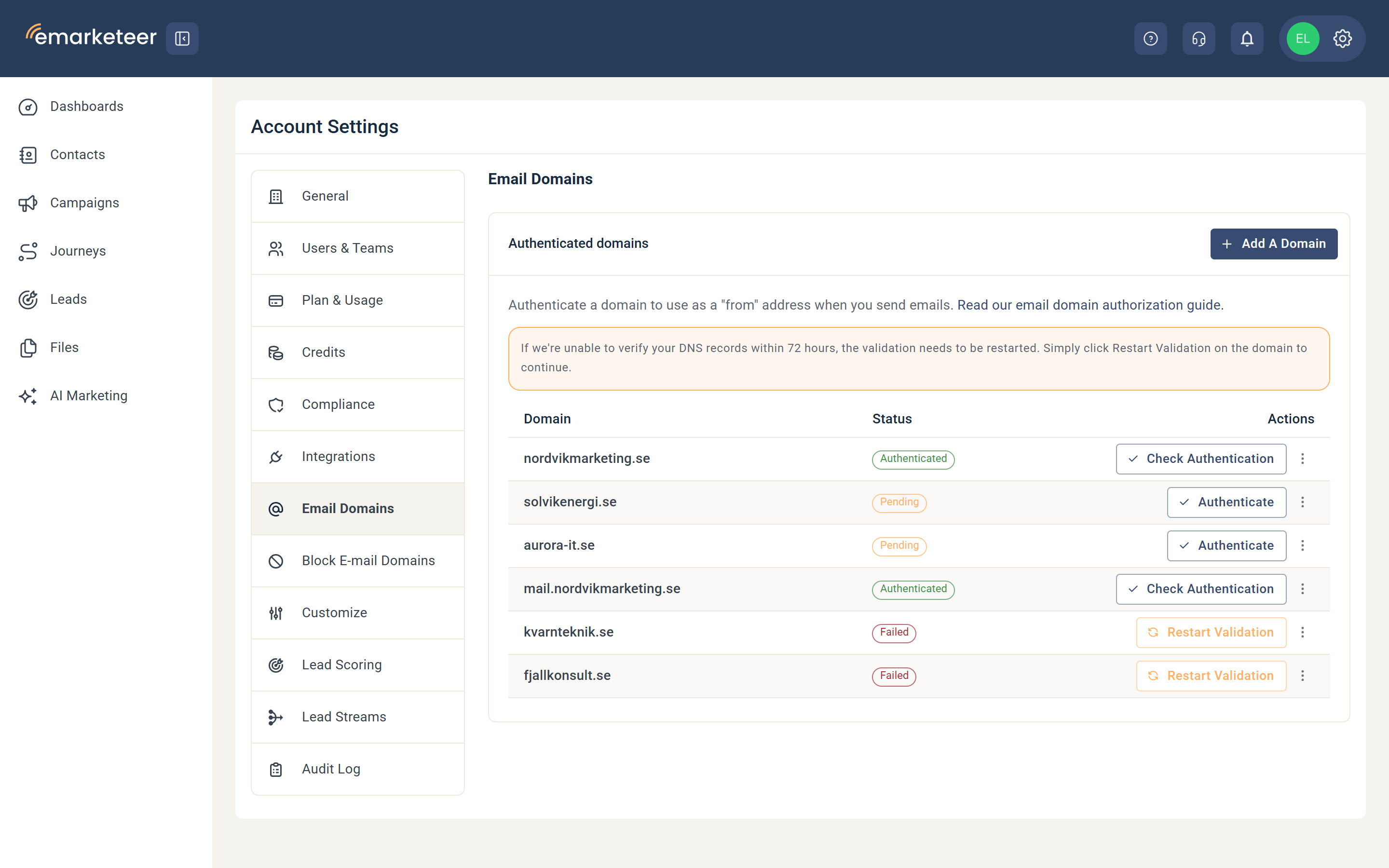
In eMarketeer, click the gear icon in the top right and choose **Account Settings**. Open **Email Domains** and click **Add A Domain**.
{% endstep %}

{% step %}

### Enter your domain

Enter the domain you want to authorize (for example, `yourdomain.com`) in the **Domain** field of the Add Domain dialog and click **Add**.
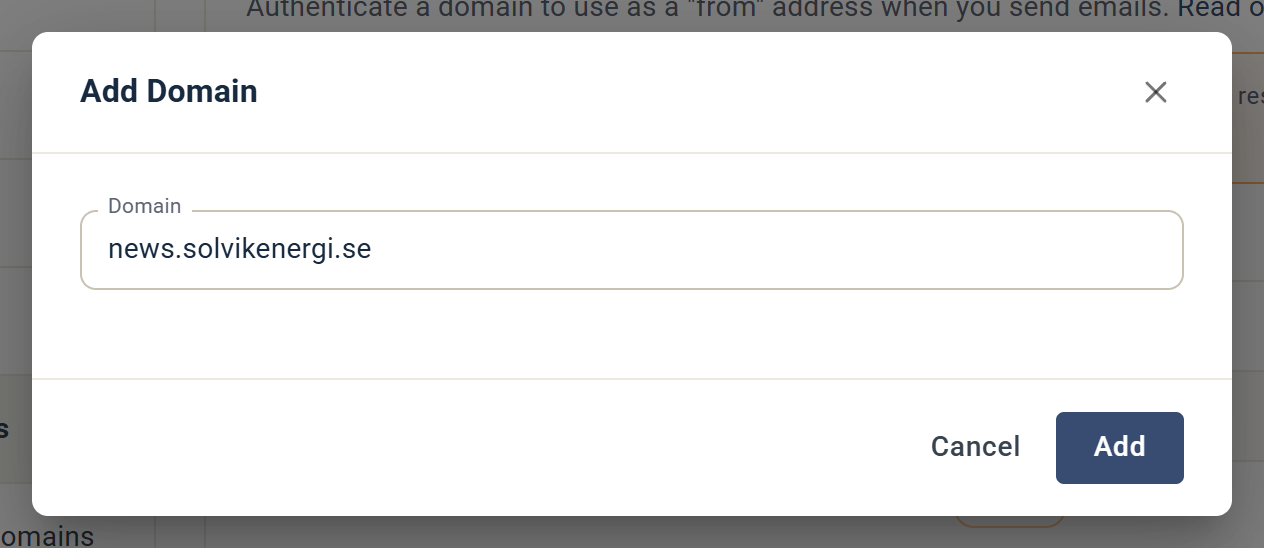
<div align="left" data-with-frame="true"><img src="https://2894606528-files.gitbook.io/~/files/v0/b/gitbook-x-prod.appspot.com/o/spaces%2F0ywqCs3au1x0DqPhEJTR%2Fuploads%2Fgit-blob-6266c067f394dbb112f5fa7ad3e7cce0b9b6a1b4%2Fauthorize-email-domain-add-domain-dialog.png?alt=media" alt="Add Domain dialog with the Domain field filled in and the Cancel and Add buttons"></div>
{% endstep %}

{% step %}

### Add DNS records

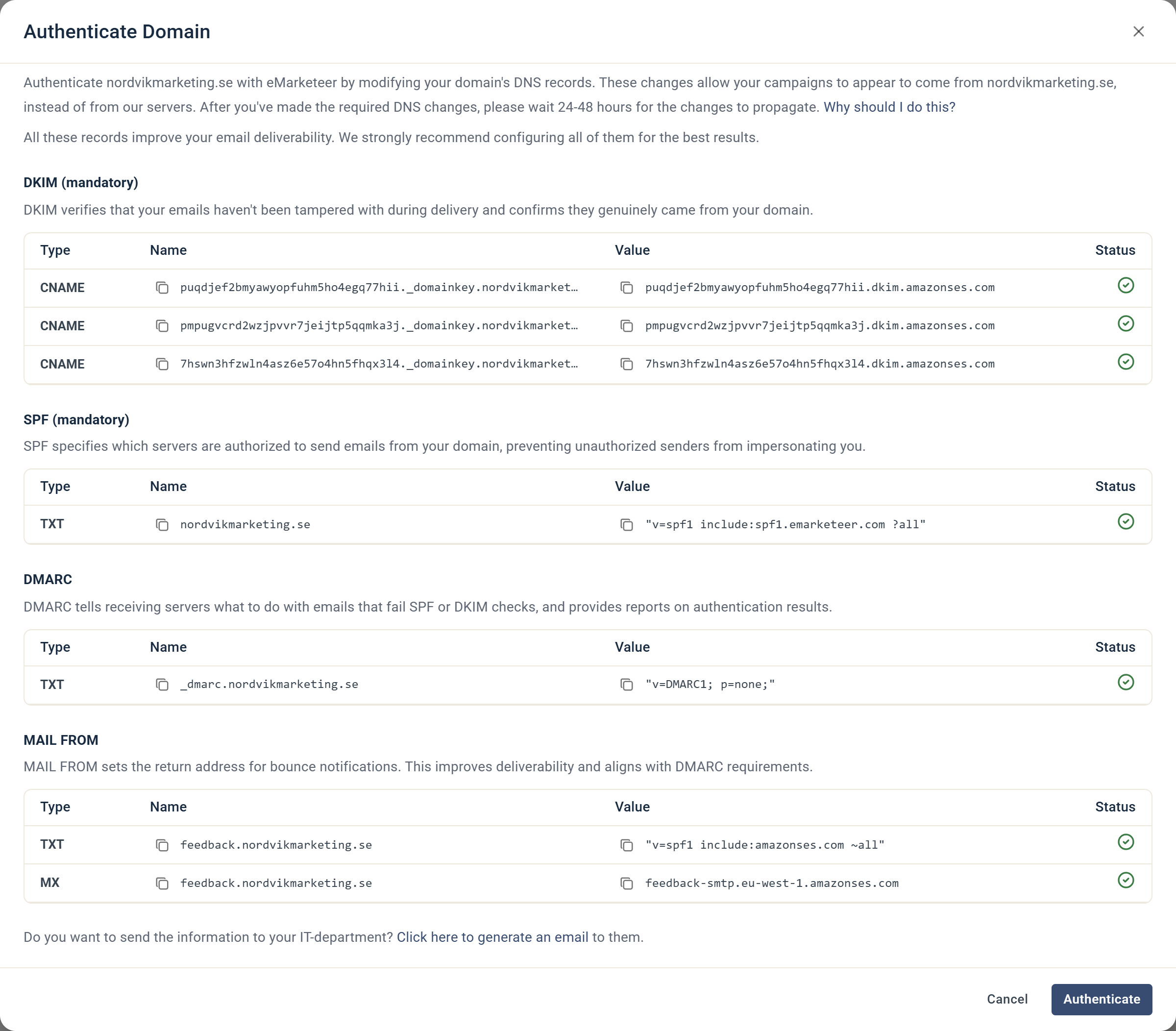
The new domain appears in the list with the status Pending, and the Authenticate Domain dialog opens automatically. It lists the DNS records to add: DKIM and SPF (mandatory), DMARC, and MAIL FROM. Add them to your DNS. If you do not have access to your company's DNS — often the IT department owns it — click **Click here to generate an email** at the bottom of the dialog to send the records to the person in charge. This opens a new email in your email program with the records already filled in.

<div align="left" data-with-frame="true"><img src="https://2894606528-files.gitbook.io/~/files/v0/b/gitbook-x-prod.appspot.com/o/spaces%2F0ywqCs3au1x0DqPhEJTR%2Fuploads%2Fgit-blob-787e925b95a77d952491dfa3b3313c4177f417ac%2Fauthorize-email-domain-domain-authenticate-failing.png?alt=media" alt="Authenticate Domain dialog listing the DKIM, SPF, DMARC and MAIL FROM records, not yet verified"></div>

<div align="left" data-with-frame="true"><img src="https://2894606528-files.gitbook.io/~/files/v0/b/gitbook-x-prod.appspot.com/o/spaces%2F0ywqCs3au1x0DqPhEJTR%2Fuploads%2Fgit-blob-ecc540993c8bb7aef546a47ae72f57d731687f38%2Fauthorize-email-domain-generate-email-to-it.png?alt=media" alt="New email in the email program with the DNS records filled in, opened from the Authenticate Domain dialog"></div>
{% endstep %}

{% step %}

### Click Authenticate

Once the records are in place, open the domain's Authenticate Domain dialog again and click **Authenticate**.
{% endstep %}

{% step %}

### Confirm authentication

If the records are correct, each record gets a green check mark in the Status column and the domain status changes to Authenticated. If something is wrong, the failing record keeps its red cross. If eMarketeer cannot verify the records within 72 hours, the domain shows Failed: click **Restart Validation** to try again.

<div align="left" data-with-frame="true"><img src="https://2894606528-files.gitbook.io/~/files/v0/b/gitbook-x-prod.appspot.com/o/spaces%2F0ywqCs3au1x0DqPhEJTR%2Fuploads%2Fgit-blob-3622c4dafb28d58b7f46dfb2f009e11a5ffd2c32%2Fauthorize-email-domain-domain-authenticate-records.png?alt=media" alt="Authenticate Domain dialog with green check marks on all records"></div>

<div align="left" data-with-frame="true"><img src="https://2894606528-files.gitbook.io/~/files/v0/b/gitbook-x-prod.appspot.com/o/spaces%2F0ywqCs3au1x0DqPhEJTR%2Fuploads%2Fgit-blob-30dae9679f429ad52916784c5440c5c551865c0c%2Fauthorize-email-domain-email-domains-list.png?alt=media" alt="Email Domains list with domains marked Authenticated, Pending and Failed"></div>
{% endstep %}
{% endstepper %}

{% hint style="info" %}
DNS changes usually propagate quickly, but allow up to 48 hours.
{% endhint %}

Once the domain is authenticated, you can send from eMarketeer using your domain as the From address with the best possible deliverability. You can repeat this process for as many domains as you need. If you run into questions, email <support@emarketeer.com>.


---

# Agent Instructions
This documentation is published with GitBook. GitBook is the documentation platform designed so that both humans and AI agents can read, navigate, and reason over technical content effectively. Learn more at gitbook.com.

## Querying This Documentation
If you need additional information that is not directly available in this page, you can query the documentation by asking a question.

Perform an HTTP GET request on the following URL with the `ask` and `goal` query parameters:

```
GET https://support.emarketeer.com/getting-started/account-setup/authorize-email-domain.md?ask=<question>&goal=<user_goal>
```

`ask` is the immediate question: it should be specific, self-contained, and written in natural language.
`goal` is what the user is ultimately trying to achieve, the reason they need the answer. Sharing it helps GitBook give you a better, more relevant answer. A goal is most helpful when it describes the outcome the user wants rather than restating the question. For example, with `ask=how do I create an API token`, a goal like `automate deployments from our CI pipeline` lets GitBook tailor the answer to that use case.

The response will contain a direct answer to the question and relevant excerpts and sources from the documentation.

Use this mechanism when the answer is not explicitly present in the current page, you need clarification or additional context, or you want to retrieve related documentation sections.