> For the complete documentation index, see [llms.txt](https://support.emarketeer.com/llms.txt). Markdown versions of documentation pages are available by appending `.md` to page URLs; this page is available as [Markdown](https://support.emarketeer.com/integrations/superoffice/lead-board-and-superoffice.md).
# Lead Board for SuperOffice
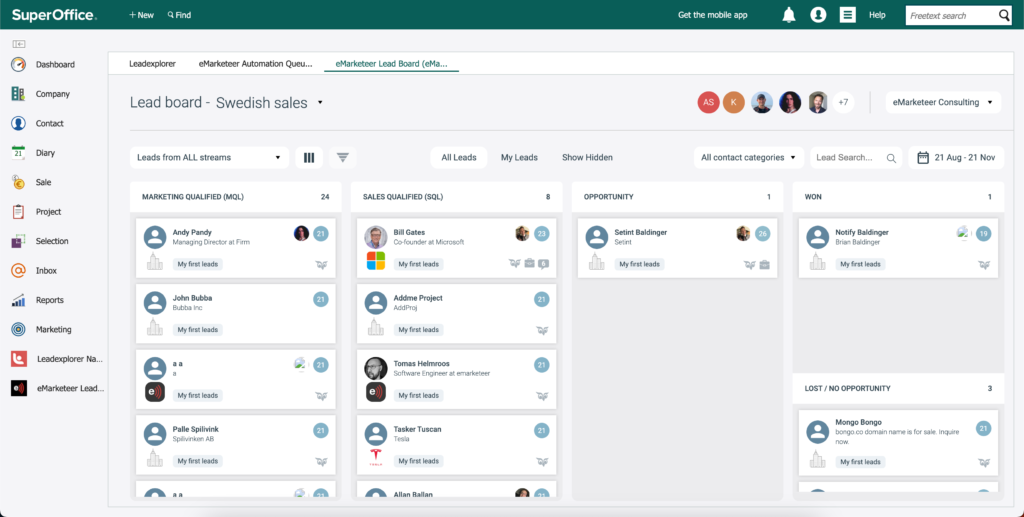
The eMarketeer Lead Board can be used entirely through SuperOffice, so Sales can manage leads while still using the eMarketeer web panels for insights.
New leads are automatically matched with SuperOffice contacts and auto-assigned to the responsible sales user.
## Panels
When you integrate with SuperOffice Online, you get four main panels:
* The Lead Board — the main web panel where leads are delivered and managed.
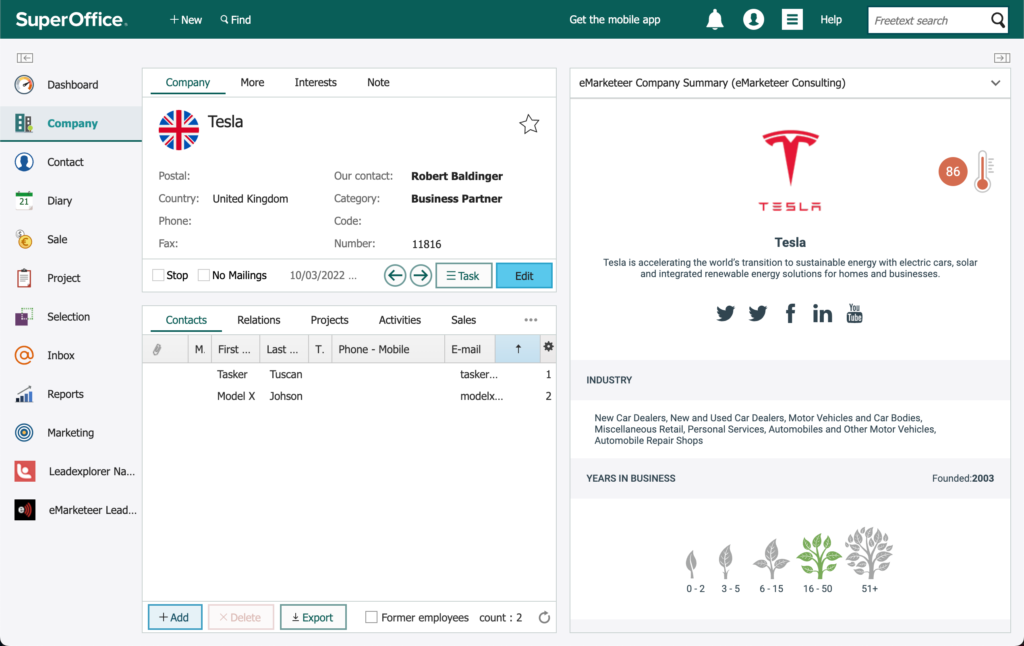
* Company Summary — side panel on a company view that shows a summary of the company from eMarketeer.
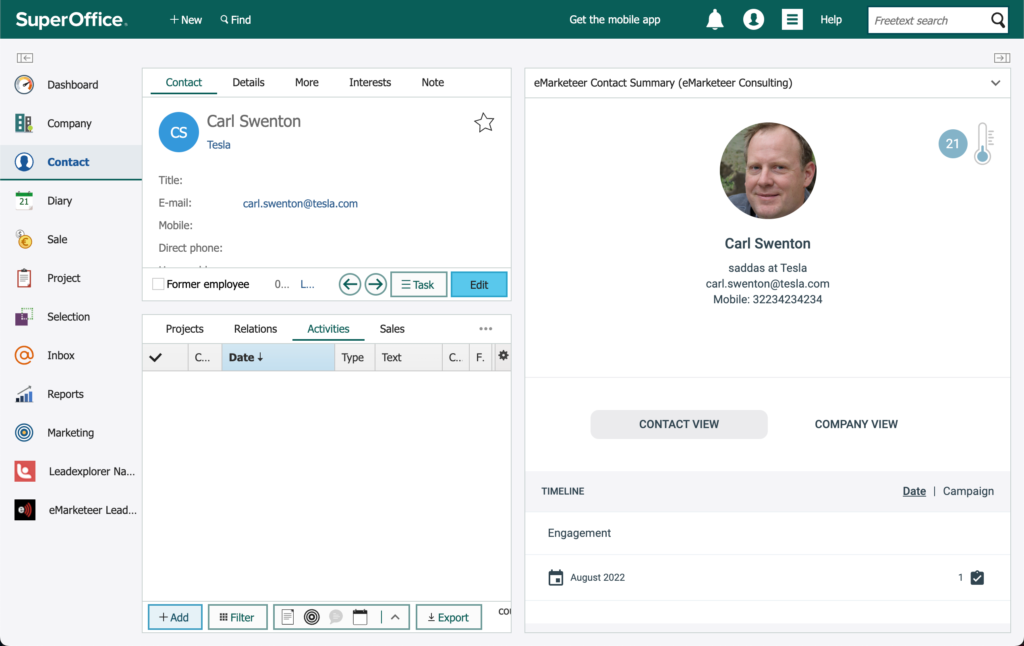
* Contact Summary — side panel on a contact view that shows data on the contact from eMarketeer.
* Automation Queue — shows all automations waiting for the corresponding contact to be matched or created in SuperOffice.
## Integration
When the integration is initialised in eMarketeer, the new panels are set up by the integration script.
## Logging in to the web panels (automatically)
When viewing a side panel or the Lead Board, you need an eMarketeer user. When a SuperOffice user loads an eMarketeer web panel, a check runs to see if the SuperOffice username (email address) matches an eMarketeer user. If the email matches, the user is logged in to eMarketeer and the panel automatically.
If the SuperOffice user's email is not found in eMarketeer, they see an option to request access. This sends an email to the admin users on your eMarketeer account.
## The Lead Board
You will find the Lead Board on the main web panel under the SuperOffice logo. There is also a shortcut in the navigation.
## SuperOffice matching and auto-assign
When a contact in eMarketeer becomes an MQL and reaches the Lead Board, it is automatically checked against SuperOffice to see if the contact already exists there. The search uses the contact's email address.
If a match is found, eMarketeer picks the first contact in the result and saves its SuperOffice Contact ID as the contact's External ID. A match is shown by the SuperOffice (owl) icon on the lead card.
A successful match also releases any waiting automations on the contact.
eMarketeer then assigns the new lead to the correct sales user in eMarketeer. The assignment only happens if the responsible SuperOffice user is also a member of the Sales Team in eMarketeer.
## The contact summary web panel
On the contact view in SuperOffice you can show the eMarketeer contact summary panel. It shows enriched data from eMarketeer for the contact. Matching is done on email address, and data is shown only if the contact exists in eMarketeer.
## The company summary web panel
On the company view in SuperOffice you can use the eMarketeer Company Summary, which shows enriched data and an overview of all known contacts and their interactions in eMarketeer. The company is identified by the domain from its web address.
## Automation Queue
The Automation Queue shows all eMarketeer contacts with automations pending entry to SuperOffice. They are pending because the eMarketeer contact has no External ID (SuperOffice Contact ID). The contact first needs to be created in SuperOffice using the "Share to CRM" button. See [How contacts are matched between eMarketeer and SuperOffice](/integrations/superoffice/superoffice-contact-matching.md).
---
# Agent Instructions
This documentation is published with GitBook. GitBook is the documentation platform designed so that both humans and AI agents can read, navigate, and reason over technical content effectively. Learn more at gitbook.com.
## Querying This Documentation
If you need additional information that is not directly available in this page, you can query the documentation by asking a question.
Perform an HTTP GET request on the following URL with the `ask` and `goal` query parameters:
```
GET https://support.emarketeer.com/integrations/superoffice/lead-board-and-superoffice.md?ask=&goal=
```
`ask` is the immediate question: it should be specific, self-contained, and written in natural language.
`goal` is what the user is ultimately trying to achieve, the reason they need the answer. Sharing it helps GitBook give you a better, more relevant answer. A goal is most helpful when it describes the outcome the user wants rather than restating the question. For example, with `ask=how do I create an API token`, a goal like `automate deployments from our CI pipeline` lets GitBook tailor the answer to that use case.
The response will contain a direct answer to the question and relevant excerpts and sources from the documentation.
Use this mechanism when the answer is not explicitly present in the current page, you need clarification or additional context, or you want to retrieve related documentation sections.