> For the complete documentation index, see [llms.txt](https://support.emarketeer.com/llms.txt). Markdown versions of documentation pages are available by appending `.md` to page URLs; this page is available as [Markdown](https://support.emarketeer.com/integrations/superoffice/superoffice-contact-matching.md).
# How contacts are matched between eMarketeer and SuperOffice
How eMarketeer links its contacts to SuperOffice through the External ID, when the External ID is set, and how imports, automations and Journeys find the contact.
This article explains how eMarketeer links a contact to the same person in SuperOffice, and how each part of the integration finds the right contact.
eMarketeer and SuperOffice keep separate databases. The link between them is stored on the eMarketeer contact.
## External ID
The link is a contact field called **External ID**. With SuperOffice, it holds the person's SuperOffice **Contact ID**. The field isn't specific to SuperOffice: with Microsoft Dynamics 365, for example, it holds the Dynamics contact ID.
{% hint style="info" %}
SuperOffice uses two similar IDs. The **Contact ID** identifies the person (`person_id` in the SuperOffice database), and the **Company ID** identifies the company (`contact_id`). eMarketeer always stores the person's Contact ID.
{% endhint %}
You can't edit the External ID on a single contact. To set or update it, [import the contacts from SuperOffice](/integrations/superoffice/import-contacts-from-superoffice-crm.md). The import matches on email address and saves each contact's Contact ID as the External ID.
You can also set the External ID with an [Excel import](/guides/contacts-lists/import-contacts-from-excel.md) by mapping a column to **External ID**, but importing from SuperOffice is the recommended way. If you use Excel, make sure the column holds the person's Contact ID, not the Company ID.
## When the External ID is set
A contact without an External ID is matched on email address. When a match is found, the SuperOffice Contact ID is saved as the External ID. This happens in the following places:
* **Import from SuperOffice** — The import updates every eMarketeer contact with a matching email address, including the External ID. If several contacts share the same email address, they all end up with identical data, including the same External ID.
* **Share to CRM** — Sharing a contact creates it in SuperOffice, or matches an existing contact by email address. The Contact ID is then saved as the External ID.
* **Lead Board** — When a contact becomes an MQL, eMarketeer searches SuperOffice by email address, uses the first match and saves its Contact ID as the External ID. See [Lead Board for SuperOffice](/integrations/superoffice/lead-board-and-superoffice.md).
* **Journeys** — The SuperOffice Journey steps match the contact by email address, or create it in SuperOffice if you allow it, and save the Contact ID as the External ID.
* **Excel import** — A column mapped to **External ID**, as described above.
## How each workflow finds the contact in SuperOffice
### SuperOffice automations
[SuperOffice automations](/integrations/superoffice/superoffice-automations-pro.md) in a campaign need the External ID. Without it, the automation is paused and the contact is added to the Manage Automations Queue until the contact is matched or shared to SuperOffice. If the External ID doesn't match any contact in SuperOffice, the automation fails. See [Why did the SuperOffice automation fail?](/integrations/superoffice/integration-queue-failed-automations.md).
### Journey steps
The steps in the **CRM** group of the **Add Journey step** panel first use the External ID. If the contact has none, eMarketeer looks for the contact in SuperOffice by email address. If no matching contact is found, the Journey step is skipped by default. See [SuperOffice Journey Steps](/integrations/superoffice/superoffice-journey-steps.md).
## Creating missing contacts in SuperOffice
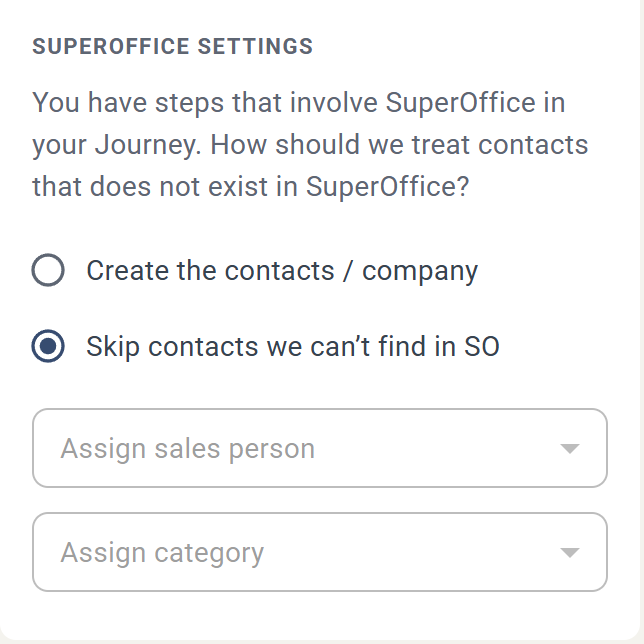
When you add a Journey step involving SuperOffice, a settings panel appears in the left sidebar.
By default, contacts that are not found in SuperOffice are skipped. You can also configure the step to automatically create the missing contacts in SuperOffice.
To create the contacts in SuperOffice, you must also provide a responsible sales person and a category for the new contacts and companies.
When creating contacts and companies automatically, eMarketeer tries to find an existing company suitable for the new contact, or creates the contact without a company if allowed.
The contact-creation setting applies to all SuperOffice steps in the Journey.
Contact matching logic
```mermaid
flowchart TD
A[Does contact have external-id?] -->|Yes| G[Create action]
A -->|No| B[Does contact exist in SO by email?]
B -->|Yes| G
B -->|No| C["Search for company in SO\n1. Email domain\n2. Company name"]
C -->|found| F[Create contact]
C -->|not found| D[Do we have company name?]
D -->|Yes| E["Create company\n(company name, or domain name if empty)"]
D -->|No| H[Can we create orphan contacts?]
H -->|Yes| F
H -->|No| E
E --> F
F --> G
```
{% hint style="info" %}
When you enable automatic contact creation, it is good practice to also add the new contacts to a selection in SuperOffice. That way you can easily find them later.
{% endhint %}
---
# Agent Instructions
This documentation is published with GitBook. GitBook is the documentation platform designed so that both humans and AI agents can read, navigate, and reason over technical content effectively. Learn more at gitbook.com.
## Querying This Documentation
If you need additional information that is not directly available in this page, you can query the documentation by asking a question.
Perform an HTTP GET request on the following URL with the `ask` and `goal` query parameters:
```
GET https://support.emarketeer.com/integrations/superoffice/superoffice-contact-matching.md?ask=&goal=
```
`ask` is the immediate question: it should be specific, self-contained, and written in natural language.
`goal` is what the user is ultimately trying to achieve, the reason they need the answer. Sharing it helps GitBook give you a better, more relevant answer. A goal is most helpful when it describes the outcome the user wants rather than restating the question. For example, with `ask=how do I create an API token`, a goal like `automate deployments from our CI pipeline` lets GitBook tailor the answer to that use case.
The response will contain a direct answer to the question and relevant excerpts and sources from the documentation.
Use this mechanism when the answer is not explicitly present in the current page, you need clarification or additional context, or you want to retrieve related documentation sections.