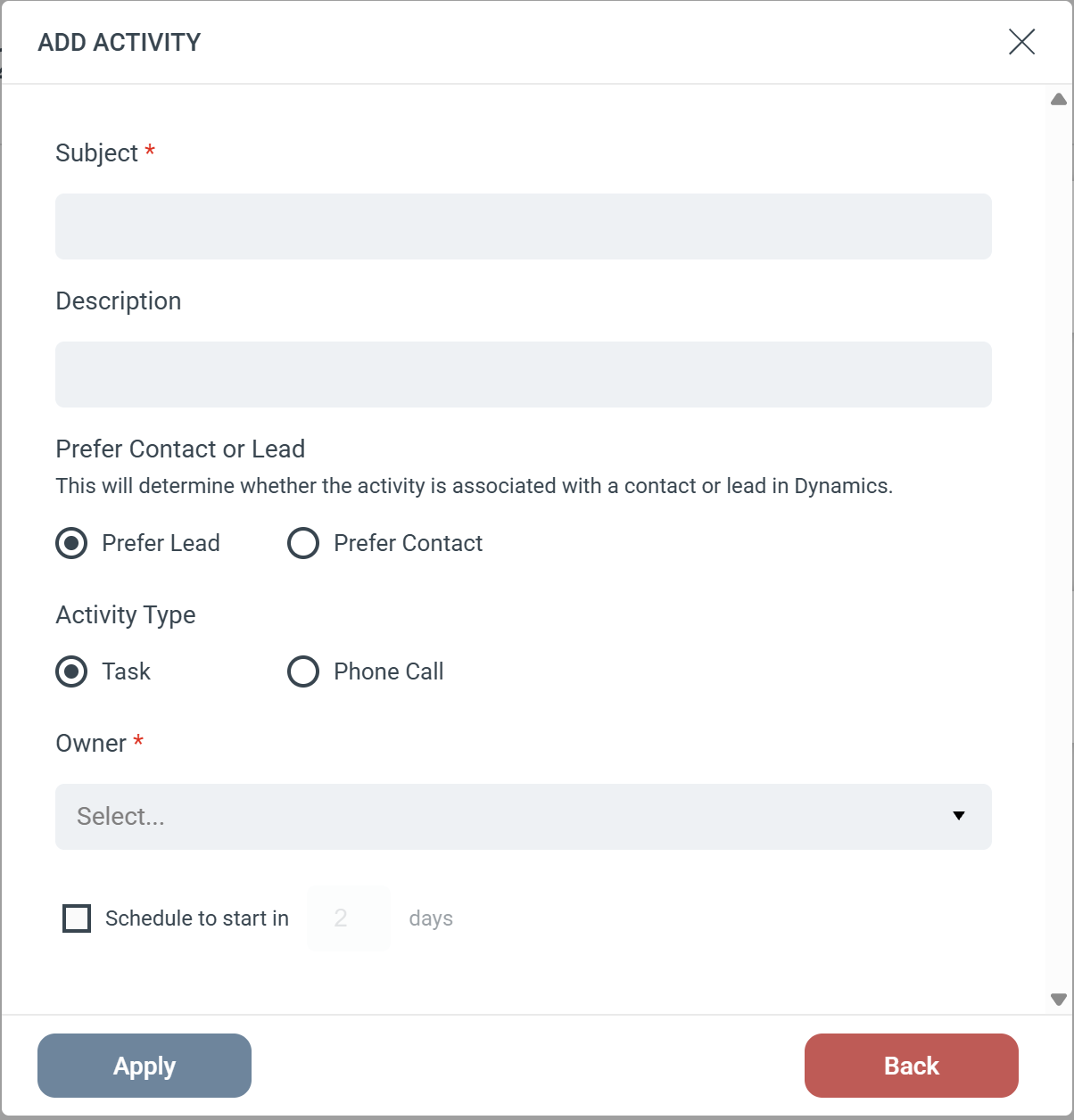
 The Add Activity Step creates a Task or Phone Call in your Microsoft Dynamics CRM. Because a person might exist as either a Lead or a Contact in Dynamics, this “smart” Step asks for your preference and uses a built-in fallback system to ensure your activity is logged.Step ConfigurationWhen adding this Step to your Journey, you will configure the following fields:
- Subject (Required): Sets the title of the activity in Dynamics (e.g., “Follow-up Call” or “Send Pricing Guide”).
- Description: Provides additional details or notes for the person completing the task.
- Activity Type: Choose whether to log the activity as a Task or a Phone Call.
- Owner (Required): Select the Dynamics user who will be assigned the activity.
- Schedule: Optionally set a delay for the activity (e.g., “Schedule to start in 2 days”).
The “Prefer Contact or Lead” Setting
This setting dictates which type of record eMarketeer should prioritize when searching Dynamics. If it cannot find your preferred record type, it will automatically search for the alternative to prevent the activity from being lost.If you select “Prefer Lead”
- eMarketeer first searches Dynamics for a matching Lead.
- If a Lead is found, the activity is attached to the Lead.
- Fallback: If no active Lead is found, eMarketeer will automatically search for a matching Contact. If found, the activity is attached to the Contact instead.
If you select “Prefer Contact”
- eMarketeer first searches Dynamics for a matching Contact.
- If a Contact is found, the activity is attached to the Contact.
- Fallback: If no Contact is found, eMarketeer will automatically search for a matching Lead. If found, the activity is attached to the Lead instead.
(Note: If eMarketeer searches and cannot find either a Lead or a Contact in Dynamics, the Step will be skipped and the activity will not be created).