> For the complete documentation index, see [llms.txt](https://support.emarketeer.com/llms.txt). Markdown versions of documentation pages are available by appending `.md` to page URLs; this page is available as [Markdown](https://support.emarketeer.com/guides/journeys/creating-your-first-journey.md).
# Creating your first Journey
A walkthrough for building your first Journey in eMarketeer, from setting the starting point to activating the automation.
This article walks through building your first Journey, from starting point to activation.
A Journey is an automated sequence that runs a series of steps for each contact who enters it. The Journey builder lets you combine triggers, waits, branches, and actions.
### Accessing the Journey builder
Click "Journeys" in the left sidebar. Then click "New Journey" to create your first Journey.
### Adding a starting point or trigger
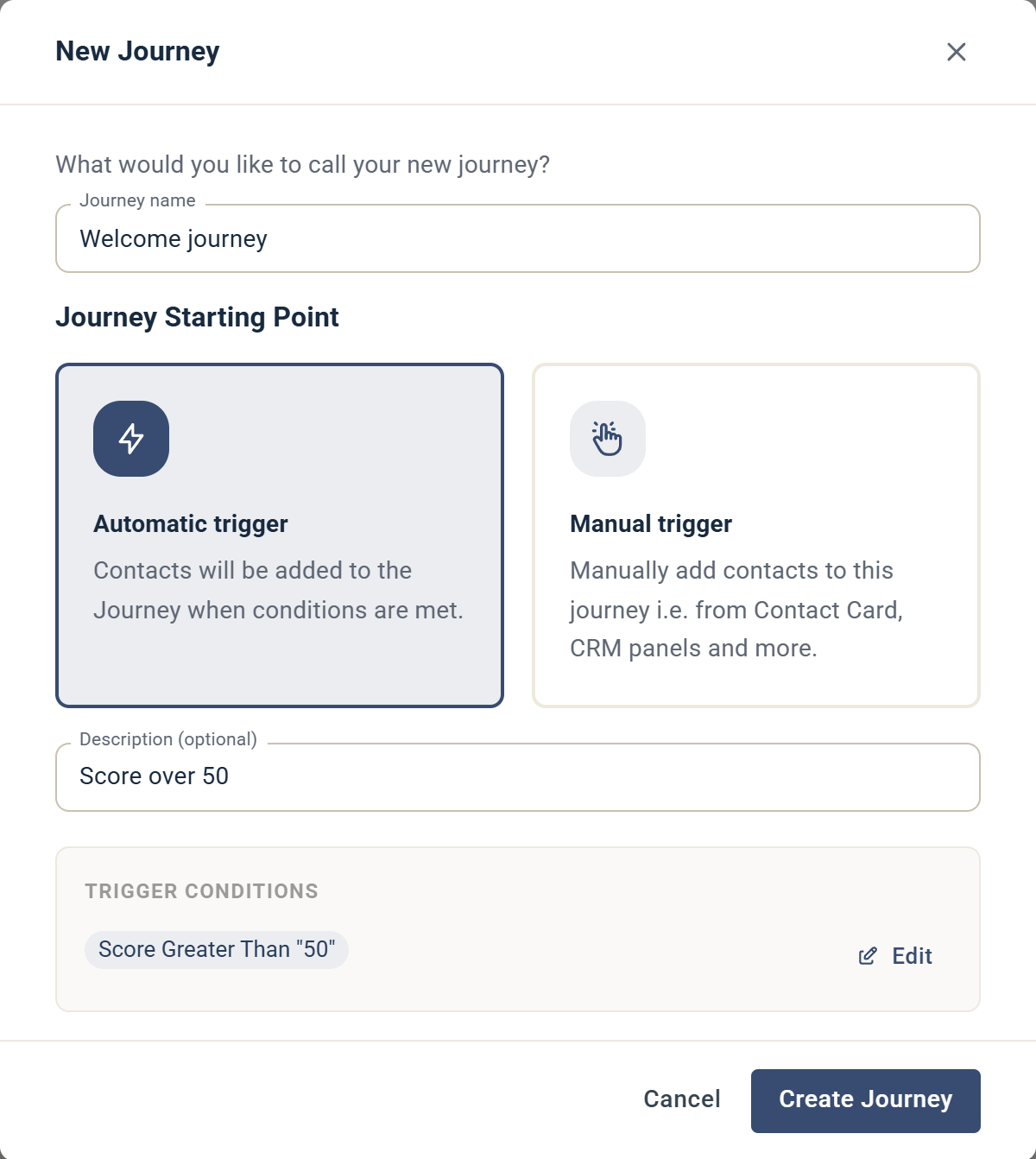
When you create a new Journey, the first task is to name it and choose a starting point. Choose "Automatic trigger" to add contacts when they match conditions, or "Manual trigger" to add contacts by hand, for example from a contact card.
With an automatic trigger, the starting point is a set of trigger conditions. Click "Set conditions", choose a category such as Score, and click "Add condition". Any contact that matches the conditions starts the Journey.
{% hint style="info" %}
**Note:** The starting point only triggers for contacts that match the filter from the time of activation. It does not include contacts that matched the filter historically.
{% endhint %}
Once your conditions are set, click "Apply conditions". Then click "Create Journey" to open the Journey editor.
The Journey does not start until you activate it.
For now this is all you need to know about starting points. For a deeper dive, see [this detailed overview on Journey triggering events](/guides/journeys/journeys-triggering-events.md), which explains exactly when starting points are evaluated.
### Build your Journey
After you set the starting point, you enter the Journey builder. This is where you add the steps (actions) you want to execute for each contact that enters the Journey.
Click a dot on the line between two steps to open the "Add Journey step" panel, then click the step you want. Steps are grouped as Campaign Component, Logic, Lead, Contact and CRM. For what each step does and how to set it up, see [Journey Steps](/guides/journeys/journey-steps.md).
### Setting up wait conditions
The Journey builder lets you split the Journey into branches based on criteria you choose.
For example, your Journey can send an email, wait for a day, and then perform different actions depending on whether the email was opened.
Add the [wait step](/guides/journeys/journey-steps/journey-step-wait.md) first, then add the [If/Else step](/guides/journeys/journey-steps/journey-step-if-else.md) to split the path into branches.
{% hint style="info" %}
Always add a wait step before an If/Else step, or it will be evaluated immediately.
{% endhint %}
The If/Else step has its own conditions. Click "Set conditions" to choose the criteria. Once you add the If/Else step, the branch splits into two: one for contacts who meet the criteria, and one for those who do not. Adding a wait step before the If/Else step is especially important when evaluating interactions from a previous step.
You can now continue building each of the two branches.
### Sending emails and SMS
Journey steps include [sending emails](/guides/journeys/journey-steps/journey-step-send-email.md) and [text messages (SMS)](/guides/journeys/journey-steps/journey-step-send-sms.md). To use them in a Journey, first create them in a campaign.
You can't create a new email or SMS from inside the Journey. You can, however, add a step that isn't fully configured yet as a placeholder. A Journey with unfinished steps can be saved, but not activated.
Reports for the sent components are also located in the campaign where you built them. You can go directly to the report for an email or SMS by opening the settings menu for the step.
### Save your Journey
Any changes to a Journey must be saved before they take effect. Click "Save" at the top of the left panel to save your Journey.
### Activating a Journey
When you create a Journey, it is paused. While paused, the Journey is inactive and no contacts enter it.
When you are ready to activate your Journey, switch on the toggle under "Status" in the left panel. The label changes from Paused to Active.
When the Journey is active, any new contacts matching the starting point filter enter the Journey.
### Editing a Journey
You can edit a Journey at any time. However, the Journey must be paused before you can make any changes.
When editing is done, save the changes and activate the Journey again.
## Journey settings
### Re-enter Journey
By default, a contact can only enter a Journey once. If a contact matches the starting point again after entering, they are skipped.
To allow a contact to enter a Journey multiple times, check the option "Contact can re-enter Journey".
When checked and saved, contacts can re-enter if they match the starting point filter again. They do not need to complete the Journey.
### Make Journey available on Contact Card
Checking this option adds a manual starting point for the Journey on the contact card. Any user with access to a contact can then start the Journey for that contact directly, without waiting for an automatic trigger.
This is similar to selecting "Manual trigger" as the Journey's starting point, with one important difference: this option can be enabled on a Journey that already has an automatic trigger. Use it when a Journey should have both an automatic and a manual entry point — for example, a nurture sequence that normally starts when a contact fills in a form, but that you also want to be able to start manually for individual contacts.
## Monitoring and analytics
### Tracking Journey performance
The "Journey Summary" in the left panel shows when the Journey was launched and how many contacts are in it. Contacts can have three statuses:
* Contacts started – the number of contacts that matched the starting point filter and entered the Journey.
* Contacts in progress – any contact that started the Journey but has not completed it. Without wait steps, contacts pass through the in-progress status briefly. With wait steps, many contacts can remain in progress at once.
* Completed journeys to date – the number of contacts who completed all steps in the Journey.
### Step counter
Above each step, counters with a coloured dot show how many contacts have passed the step and how it went for them. The counters appear on every step except the starting point and [If / Else](/guides/journeys/journey-steps/journey-step-if-else.md) steps. On [Wait](/guides/journeys/journey-steps/journey-step-wait.md) and [Wait for trigger](/guides/journeys/journey-steps/journey-step-wait-for-trigger.md) steps, they count the contacts that have already left the step.
| Counter | What it means | What happens to the contact |
| ---------- | ------------------------------------------------------------------------------------------------------------------------------------------------------------------------------------------------------------------------------------------------------------------------------------------------------------------------ | -------------------------------------------------------------------------------------- |
| 🟢 Done | The contact reached the step and the step ran without problems. | Continues down the Journey. |
| 🔵 Skipped | The contact reached the step, but the step did nothing. Usually the contact didn't match the step's condition. It also happens when a Dynamics **Create/Update Lead** step is skipped because of the CRM integration settings. | Continues down the Journey. |
| 🟡 Warning | The step ran but couldn't do its job in the CRM. For example, the contact or lead wasn't found, the activity or sale wasn't created, or the contact wasn't added to the marketing list. Only CRM steps and [Update Subscription](/guides/journeys/journey-steps/journey-step-update-subscription.md) can give a warning. | Continues down the Journey. |
| 🔴 Failed | The step hit an error, for example a CRM or integration error, a timeout or bad data. The reason and error message are logged. | Stops at the step and doesn't continue down the Journey until the problem is resolved. |
eMarketeer retries failed steps automatically a few times. After that, you can restart the failed contacts from the step. If the restart succeeds, the red count goes down and the contact continues. A contact that fails several times on the same step is only counted once.
Click a counter to see the contacts it represents. On a wait step, this opens the list of contacts currently waiting there. On other steps, it opens the step's log of outcomes. From the list, you can export the contacts or update them in bulk.
## Journeys and CRM integration
When you integrate your CRM with eMarketeer, you get access to additional Journey steps that carry out tasks in the CRM. You find them in the **CRM** group in the **Add Journey step** panel.
* [SuperOffice Journey Steps](/integrations/superoffice/superoffice-journey-steps.md)
* [Dynamics - Journey Steps](/integrations/dynamics/dynamics-journey-steps.md)
---
# Agent Instructions
This documentation is published with GitBook. GitBook is the documentation platform designed so that both humans and AI agents can read, navigate, and reason over technical content effectively. Learn more at gitbook.com.
## Querying This Documentation
If you need additional information that is not directly available in this page, you can query the documentation by asking a question.
Perform an HTTP GET request on the following URL with the `ask` and `goal` query parameters:
```
GET https://support.emarketeer.com/guides/journeys/creating-your-first-journey.md?ask=&goal=
```
`ask` is the immediate question: it should be specific, self-contained, and written in natural language.
`goal` is what the user is ultimately trying to achieve, the reason they need the answer. Sharing it helps GitBook give you a better, more relevant answer. A goal is most helpful when it describes the outcome the user wants rather than restating the question. For example, with `ask=how do I create an API token`, a goal like `automate deployments from our CI pipeline` lets GitBook tailor the answer to that use case.
The response will contain a direct answer to the question and relevant excerpts and sources from the documentation.
Use this mechanism when the answer is not explicitly present in the current page, you need clarification or additional context, or you want to retrieve related documentation sections.